Three Options for a Password Protected Website: UK DIY or Hire
For most site owners, the right fix is one of three: a built-in page or site password for simple gating, server-level Basic Auth (.htaccess) for staging and developer work, or a CMS plugin for recurring membership access. Whichever you pick, it only holds up behind HTTPS with multi-factor authentication switched on for every admin account. Get those two basics wrong and the cleverest password screen in the world won’t save you.
TL;DR:
- A site-wide password offers quick setup but applies the same access to everyone, making it unsuitable for multiple user levels.
- Page-specific protection is effective for one private page but may be limited by your hosting plan, and linked files can remain public.
- Server Basic Auth provides the strongest security for staging or development environments but requires SSH access and careful configuration of .htaccess and .htpasswd files.
- Ensuring HTTPS and enabling multi-factor authentication are critical for any password protection method to prevent interception and account compromise.
- For non-technical users, managed website services like BasicBS provide secure, password-protected sites without the complexity of DIY configuration.
Table of Contents
- Password protected website methods compared: pros, cons and best use
- How do you password protect a page in WordPress, Wix, Squarespace or Webflow?
- How do I set up .htaccess password protection safely?
- Why a password alone isn’t enough security
- How do I remove password protection from my website?
- Legal and privacy implications of password protecting websites
- What are the alternatives to a password protected website?
- Rhys’s perspective: when DIY password protection stops making sense
- Get a password protected website live without the DIY headaches
- Sources
- FAQ
Password protected website methods compared: pros, cons and best use
Right, let’s cut the rubbish and get to what actually matters: which method fits your situation. There’s no single “best” way to lock down a page. There’s the right tool for the job in front of you, and three genuinely different jobs hiding under the same search term.
A site-wide password is the blunt instrument. One password, applied everywhere, no exceptions. It’s the fastest thing to set up, usually a single toggle in your hosting control panel or site builder, and it’s perfect for a site that’s mid-rebuild or temporarily closed for business. The trade-off is exactly what you’d expect from a blunt instrument: everyone gets the same key, so you can’t give your web developer one level of access and your bridesmaids another.
Page or folder-level protection, set through your CMS or hosted builder, is the better fit when you only need to hide one thing: a private wedding website, a client proofing gallery, a pricing page for trade customers only. You set the password on that one page and leave the rest of the site open to Google and everyone else. The catch is plan limits. Some builders only offer page passwords on their higher tiers, and uploaded images or PDFs linked from that page can sometimes stay technically public even when the page itself asks for a password.
Server Basic Auth, delivered through an .htaccess file, is the heavyweight option. It sits in front of the entire server response, blocking access before any page, image, or script loads. That makes it the most watertight choice for staging environments and developer sandboxes, because nothing gets through, not even search engine crawlers. The catch: you need hosting or SSH access and a bit of nerve around config files.
Plugins and membership systems earn their keep when access needs to change per person over time: course content, a private member area, a client portal with different permission levels. They’re more powerful than a single shared password, but they’re also more to maintain, more to update, and one more thing that can go wrong at 11pm on a Sunday.
- Site-wide password: fastest to set up, but all-or-nothing access.
- Page or folder protection: ideal for one private page (weddings, portfolios, client galleries); watch plan limits.
- Server Basic Auth: the most robust option for staging or developer work; needs hosting/SSH access.
- Plugin or membership system: best for ongoing gated content with multiple user levels; heavier upkeep.
How do you password protect a page in WordPress, Wix, Squarespace or Webflow?
The steps below are actually enough to get most people live in under ten minutes, plugin install included.
WordPress
- Install a lightweight password protection plugin from the official repository (search “password protect page” inside your dashboard) rather than a bloated all-in-one security suite you’ll never fully configure.
- Open the page or post you want to hide and look for the native “Visibility” setting in the block editor’s document panel. WordPress actually ships with a built-in password option here already, no plugin required for basic cases.
- Set your password, publish, and open the page in an incognito window to confirm it prompts correctly.
- Check any images or PDFs uploaded to that page separately. WordPress media files often keep their own direct URL, meaning someone with the link can bypass your password screen entirely if you’ve shared it elsewhere.
- Clear any caching plugin (WP Rocket, W3 Total Cache, or similar) after applying protection. A cached version of the page can serve the unprotected content to visitors who hit it before the cache clears.
Squarespace
- Go to your page settings and look for the password protection field under the page’s general settings.
- Squarespace offers this at the page level on most plans, but always confirm your specific plan includes it before building your whole strategy around it.
- Test in a private browser window. Squarespace tends to remember your login for the session, so testing in your normal browser can give a false “it’s not working” result when it actually is.
Wix
- Head to your site’s page settings menu and toggle the password protection option for that individual page.
- Wix applies this cleanly at the page level, but double-check that any linked galleries or downloadable files aren’t sitting on a separate, unprotected URL.
Webflow
- Password protection in Webflow generally lives at the site or subdomain level, depending on your plan tier, rather than per individual page.
- If you need one private page rather than a whole protected site, you may need to structure that content on a separate subdomain or use a CMS collection with restricted visibility.
Across all three hosted builders, the same warning applies: password protection stops people reading your page, but it doesn’t always stop them opening a file you uploaded to it directly. Verify asset privacy separately, and if you’re not sure, ask the platform’s support team directly rather than assuming.
Pro Tip: Before you tell anyone the password, open the protected page in a private/incognito browser window on your phone. Mobile rendering and caching behave differently to desktop, and it’s the fastest way to catch a leak before your guests do.
How do I set up .htaccess password protection safely?
Server Basic Auth is the option to reach for when a page password isn’t strict enough. It works through two small files: an .htpasswd file that stores usernames and encrypted passwords, and an .htaccess file that tells the server to demand them before serving anything in that folder. HTTP Basic Authentication via .htaccess remains a robust method for securing staging or development sites, blocking every visitor, including search engine bots, until the right credentials go in.
The critical detail most guides skip: your .htpasswd file should sit one directory above your public web root, never inside it. If it lives inside the folder your server actually serves, a mistyped permission or a disabled Apache module can leave that file directly downloadable, handing out every password on your site in plain sight.
- Connect to your server via SSH or your hosting control panel’s file manager.
- Generate the .htpasswd file using your host’s tools. Hosting provider tutorials show the exact SSH workflow for creating this file and encrypting the password entry inside it.
- Save that file above the web root, for example in a folder one level up from
public_html. - Create or edit the .htaccess file in the directory you want to protect, adding:
AuthType BasicAuthName "Restricted Area"AuthUserFile /full/path/to/.htpasswdRequire valid-user
- Double-check the
AuthUserFilepath is the absolute server path, not a relative one. Hosting documentation demonstrates this same placement pattern for protecting individual directories. - Save, then load the page in a fresh private browser window to confirm the login prompt appears.
If you see a 500 Internal Server Error instead of a password box, the cause is almost always the same: a wrong AuthUserFile path, a typo in the .htaccess syntax, or file permissions set too tightly for Apache to read the file. This is the single most common failure point hosting support teams see when readers set this up themselves for the first time.
Run through this before calling it done:
- Load the protected folder in a private/incognito window and confirm the login box appears.
- Try the correct credentials, then a deliberately wrong password, to confirm both success and rejection work.
- Check file permissions on both .htpasswd and .htaccess (typically 644).
- Confirm .htpasswd is not reachable by visiting its direct URL. It should return a 403 Forbidden, never the raw file contents.
Why a password alone isn’t enough security
Here’s the bit most “how to password protect your site” guides gloss over: a password screen is only as strong as everything sitting behind it. Get the fundamentals wrong and you’ve built a nice front door on a house with the back window left open.
HTTPS first, always. If your protected page isn’t served over SSL, that password gets sent across the internet in a form that’s far easier to intercept, and browsers now actively flag non-HTTPS pages as “Not Secure” anyway, which does nothing for guest confidence on a private wedding website. Every credible host includes SSL as standard now. If yours doesn’t, that’s a red flag worth acting on.
Multi-factor authentication is the single biggest lever you’re not pulling. Enabling MFA on administrative accounts reduces the success rate of automated account takeover attacks by over 99%. That’s not a marginal improvement, it’s the difference between a locked door and a padlocked vault. Switch it on for your CMS login and your hosting account today, not “next time you get round to it.”
Beyond that, the checklist is short but non-negotiable:
- Use genuinely strong, unique passwords (12+ characters, mixed case, numbers and symbols) rather than the same recycled one you’ve used since 2016. A password manager makes this painless.
- Remove shared admin logins. If three people use “admin/password123”, you have no idea who actually did what when something goes wrong.
- Audit user accounts regularly and remove anyone who’s left the team or the project.
- Schedule automatic updates and backups so a compromised plugin doesn’t take your whole site down with it.
Build a simple monthly cadence: check who has access, confirm backups actually ran (don’t just assume), and act immediately on any account that’s gone quiet. Best practice guidance for UK small businesses puts SSL, strong passwords, updates and backups ahead of any plugin or fancy access tool, and that order matters. Get the fundamentals right first.
How do I remove password protection from my website?
Taking a password screen down is usually quicker than putting it up, but skipping the checks afterwards is where people come unstuck.
- Hosted builders (WordPress, Wix, Squarespace, Webflow): go back to the same visibility or password field you used to set it up and toggle it off or clear the password field. Save the change.
- Clear your cache immediately afterwards. If a caching plugin or your host’s edge cache saved the protected version, visitors might still see the password prompt (or, worse, the unprotected version might not reflect properly) for a while.
- Check your sitemap and robots.txt. A page that was hidden while protected may need re-submitting to Google Search Console so it gets indexed properly now it’s public.
- Removing .htaccess Basic Auth: back up your current .htaccess file first (copy it somewhere safe), then delete or comment out the
AuthType,AuthName,AuthUserFileandRequire valid-userlines. - Delete the relevant entry from .htpasswd, or remove the whole file if you no longer need any credentials stored there.
- Test in a private browser window to confirm the page loads without a prompt.
If something breaks after you remove protection, work through this quickly:
- A 500 error usually means a stray character or unmatched syntax was left behind in .htaccess. Restore your backup and edit more carefully.
- If the password prompt still appears, your browser or a server cache is serving an old version. Clear both.
- If images or files still return a permissions error, check that file-level permissions weren’t changed as part of the original setup.
Legal and privacy implications of password protecting websites
Password protecting a page isn’t just a technical decision, it can carry real legal weight depending on what’s behind that gate. If you’re storing or processing personal data of the people you’ve invited (guest names, email addresses, RSVP details on a private wedding website, for instance), UK data protection law still applies to how you collect, store and delete that information, password or no password.
A password screen also doesn’t remove your responsibility around accessibility. If you’re running a business site with a client portal or gated pricing page, the login and password page itself should still be usable by people with disabilities, not just the content behind it.
There’s a subtler point too: password protecting a page to hide it from Google is not the same as making it legally private. Search engines generally won’t index a properly password-protected page, but if the URL leaks, gets shared publicly, or a linked file bypasses the gate (as covered earlier), anything sensitive sitting there is exposed regardless of the intent behind the password.
If you’re gating content that involves other people’s personal data, whether that’s a client portal, a staff-only area, or an event site with guest details, it’s worth a quick read of your obligations under UK GDPR before you build the page, not after someone asks what you’re doing with their email address. When in doubt on anything genuinely sensitive, a proper conversation with a legal adviser costs far less than getting it wrong.
What are the alternatives to a password protected website?
A password isn’t the only way to keep a page away from the wrong eyes, and for some situations, it’s not even the best one.
IP whitelisting restricts access to specific network addresses, so only people connecting from an approved office, home, or VPN can reach the page at all, no password required or possible from anywhere else. It’s excellent for internal tools but useless for a wedding website where guests are connecting from dozens of different homes and phones.
VPN access takes that further: visitors connect to a private network first, then reach the site as if they were on a trusted internal connection. It’s common for staff intranets, less practical for anything public-facing.
User role management, rather than one shared password, gives each person their own login with permissions scoped to what they actually need to see. For a client login on a business website, this beats a single password for everyone because you can revoke one person’s access without resetting the password for the whole group. It’s more setup work, and this is exactly where a well-built role-based access control system earns its complexity, particularly for client portals with tiered permissions.
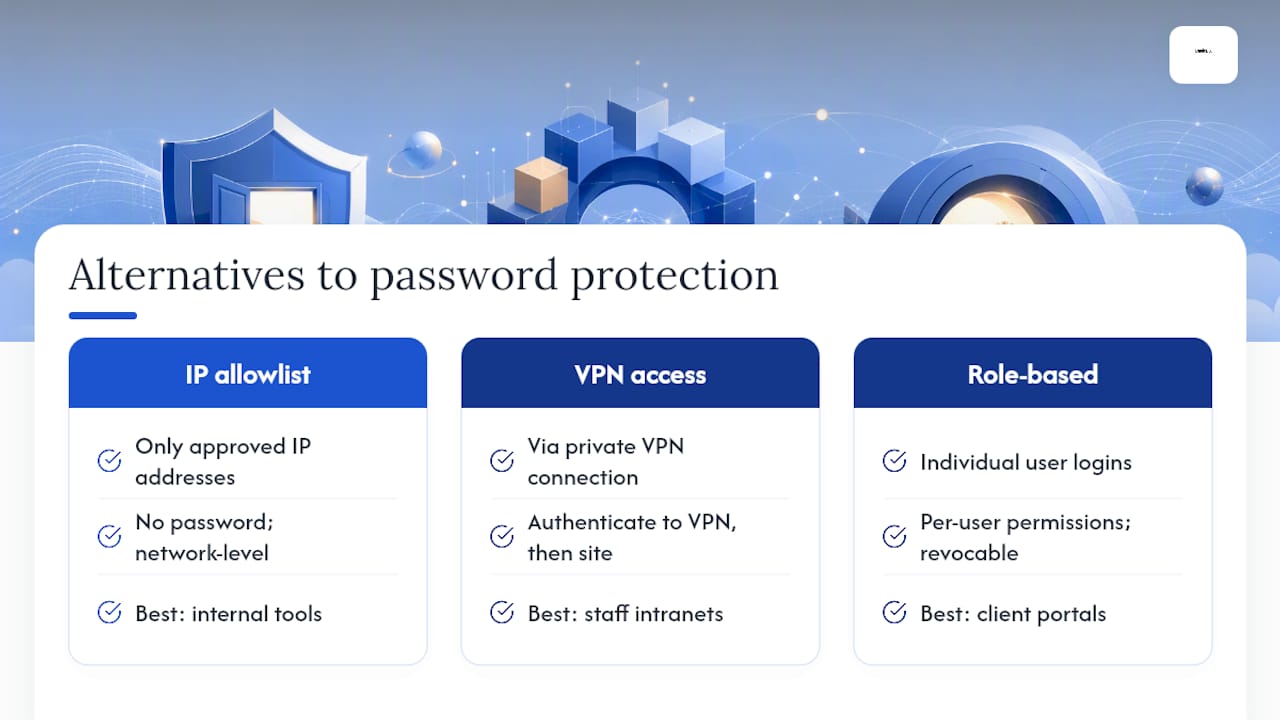
None of these replace password protection outright. They’re different tools for different risk levels, and the honest answer is that most small business and event sites genuinely don’t need IP whitelisting or a VPN. A well-configured password page, backed by SSL and MFA, covers the vast majority of real-world cases.
Rhys’s perspective: when DIY password protection stops making sense
Here’s my honest take: DIY password protection is genuinely fine for a one-off, low-stakes page. A private wedding website, a portfolio, a temporary “coming soon” screen. Do it yourself, save the money, no shame in it.
Where I’d tell you to stop and hand it over is when the deadline is tight, the content is genuinely sensitive, or you’ve never touched an .htaccess file and don’t want your first attempt live on the internet with your name on it. That’s where BasicBS earns its keep: managed UK hosting with SSL and monthly updates baked in, so the “did I remember to renew that certificate” panic simply never happens.
— Rhys
Get a password protected website live without the DIY headaches
If you’d rather skip the .htaccess fiddling altogether, BasicBS builds password protected event pages and small business sites without the eye-watering agency invoice or the small print that locks you in for years.
We’re not a bloated web agency charging thousands upfront for a “discovery workshop” before you’ve even seen a design. BasicBS runs on straightforward pay monthly website design UK small businesses can actually plan around: a one-off setup fee from £100, then the Website Sale! plan from £10 a month, no long contract holding you hostage, no nasty renewal shock further down the line. That covers sole traders, tradespeople, and anyone tired of website design without a monthly contract that quietly punishes loyal customers.
Whether you need a plumber website design package, a simple website for a sole trader, a mobile friendly quote page for trades, or a password protected private wedding website with the couple’s own login, we build it, host it securely, and keep it updated. Sites go live in five to seven working days, with managed UK hosting, SSL and continuous updates included as standard, not bolted on as an upsell. Curious what quality actually costs versus a bargain-bin build? Have a read of why cheap website development often fails before you commit to anything.
Get in touch for a quote and tell us what you need protected, and by when.
Sources
- Guide to multi‑factor authentication policy — NHS Digital
- Setting up password protection (.htaccess) via SSH — IONOS Help
- Use .htaccess to password protect your site in Cloud Sites — Nexcess
FAQ
Can you have a password protected website?
Yes. You can lock down an entire site or a single page using built-in CMS settings, server-level Basic Auth via .htaccess, or a plugin, depending on how much access control you need.
Can I password protect certain pages on my website?
Yes, most CMS platforms and hosted builders (WordPress, Wix, Squarespace, Webflow) let you password protect individual pages while leaving the rest of the site public, which is exactly how most private wedding websites work.
How do I remove password protection from my website?
Toggle off the password setting in your CMS or builder, or remove the relevant lines from your .htaccess file and delete the matching entry in .htpasswd, then clear your cache and test the page in a private browser window.
How do I put a lock on my website?
For a quick lock, use your CMS or builder’s built-in page or site password feature; for a more secure lock covering an entire folder or staging site, set up server-level Basic Authentication with .htaccess. If you’d rather someone else handled it properly, BasicBS builds password protected sites and event pages as part of its managed website service.