Privacy safe, embed Instagram on your UK website in 2 minutes

Yes, you can embed Instagram posts and profiles, and the quickest method is Instagram’s own native embed tool. If you want to show more than one post, you’ll need a feed widget or plugin instead. Either way, don’t let third-party embeds load before your visitor has agreed to it, because UK privacy rules say otherwise.
TL;DR:
- Native Instagram embeds only work for public accounts and display photos, captions, and media without styling customization or moderation controls.
- Embedding a single post or profile takes just a few steps: copy the embed code from Instagram and paste it into your site’s HTML, ensuring the account isn’t private or the post not deleted.
- To show multiple posts, use third-party widgets or plugins that offer design options and caching but add script dependencies and less moderation control.
- Embeds set cookies and access device data immediately, so prior user consent under UK privacy rules is necessary before loading them, ideally using a permission-before-load approach.
- Placing multiple Instagram embeds without lazy loading can slow down your site, so implement loading delays or placeholders to maintain speed and accessibility.
Table of Contents
- What you can actually embed (and where it falls over)
- How to embed a single Instagram post or profile
- Showing a full feed: widgets and plugins do the heavy lifting
- Privacy and consent: the bit most sites get wrong
- Performance and accessibility: don’t let embeds wreck your page speed
- Where to paste your embed code on WordPress, Wix and Shopify
- Why we lean on permission-before-load
- How BasicBS builds Instagram embeds into your site the right way
- Sources
- FAQ
What you can actually embed (and where it falls over)
Instagram lets you embed single posts, reels, and full profile previews, but only from public accounts. There’s no getting around that one: private accounts simply don’t offer the embed option.
A native embed shows the author, caption and media exactly as they appear on Instagram. What it won’t give you is control over styling, colours or layout, and there’s no built-in moderation if the original post gets edited or deleted.
- Public posts, reels and profiles can be embedded using Instagram’s built-in embed feature.
- Native embeds render the author, caption and media, not custom styling.
- Common failures: a private account, a deleted post, or a strict network or browser policy blocking the script.
How to embed a single Instagram post or profile
This bit takes about two minutes once you know where to click. No coding required, just copying and pasting.
- Open the post or profile on Instagram, ideally on desktop for the clearest menu.
- Click the three dots (top right of the post) and select “Embed”.
- Copy the code Instagram gives you. This uses the same oEmbed method that Meta’s developer documentation describes for pulling embed HTML and metadata.
- Paste it into your site: a Custom HTML block in WordPress, the embed element in Wix’s editor, or a custom HTML section in your Shopify theme.
- Preview the page and check it resizes properly on mobile.
If there’s no “Embed” option at all, the account is private, full stop. If the embed loads but shows nothing, the post has probably been removed or the page hasn’t refreshed the script properly. Responsive sizing issues usually sort themselves out if you wrap the embed in a container with a max width rather than a fixed pixel size.
Pro Tip: Test the embed in an incognito or private browser window; some ad blockers and browser privacy settings will silently strip Instagram embeds, and you’ll want to know that before your customers do.
Showing a full feed: widgets and plugins do the heavy lifting
Native embeds are built for one post at a time. If you want a scrolling grid of your latest content, you need a third-party widget or plugin, because Instagram doesn’t offer a native “feed” embed.
The setup flow is fairly similar across tools: sign up for the widget service, connect your Instagram account, pick a layout (grid, carousel, list), then paste the snippet it generates into your site.
- Widgets give you design control and layout options that native embeds simply don’t offer.
- Most widgets cache the feed rather than pulling live data every time, which helps with load speed.
- The trade-off is an extra script dependency and less control over moderation than a manually chosen embed.
Privacy and consent: the bit most sites get wrong
Instagram embeds can set cookies and access device information the moment they load, and that matters more than most site owners realise; for more on cookie types and management, see the Use of Cookies guide by NULLBIT. Under ICO guidance on storage and access technologies, you need prior, specific and informed consent before this kind of third-party content fires, unless it’s strictly necessary for the page to function, which an Instagram embed generally isn’t.
As of 2026, updated UK cookie guidance reinforces that any third-party embed setting cookies should be withheld until the visitor actively consents, not loaded by default with an opt-out buried in a cookie banner.
This is where “permission before load” earns its keep: a placeholder-and-click pattern that stops the third-party script from firing until the visitor explicitly agrees, reducing the privacy risk and keeping you on the right side of the guidance.
Practical steps that actually work:
- Gate embeds behind your cookie banner so nothing loads before consent.
- Use a lightweight placeholder image with a “Load Instagram content” button.
- Keep a record of when and how consent was given.
- Check our cookie policy for how we handle this on client sites.
Performance and accessibility: don’t let embeds wreck your page speed
Stacking several raw Instagram embeds on one page is a fast way to slow it right down, and slow pages lose visitors before they’ve even seen your content. Lazy loading, where the embed only initialises once it’s near the visible part of the screen, is the fix most developers reach for.
- Use a lightweight CSS placeholder in place of the live embed until it’s needed.
- Trigger the real embed with an IntersectionObserver so it only loads near the viewport.
- Add an accessible “Load Instagram” button rather than relying purely on scroll behaviour.
- Test the result with Lighthouse to catch anything still dragging load times down.
Pro Tip: Give your placeholder button a proper focus state and a clear label, not just an icon, so keyboard and screen reader users aren’t left guessing what it does.
Where to paste your embed code on WordPress, Wix and Shopify
Every builder handles pasted code slightly differently, but none of it is complicated once you know the right block.
- WordPress: add a Custom HTML block for a single embed, or install a reputable feed plugin if you want a full grid of posts.
- Wix: drag in the HTML embed element from the editor’s “embed” menu and paste your code there.
- Shopify: add the custom HTML to a theme section, or use an app from the Shopify store if you want a live feed rather than a single post.
Whichever platform you’re on, always preview on mobile before publishing. A surprising number of embed issues only show up on a phone screen.
Why we lean on permission-before-load

Social proof is worth having on a small business site, but not at the cost of a slow, non-compliant page. We’d rather set up a permission-before-load embed or a single curated post than load a live feed nobody asked to see.
Our rule of thumb: use a native embed for a genuine standout post, a curated widget when you need ongoing content, and a simple screenshot with a link when speed matters more than the feed itself.
— Rhys
How BasicBS builds Instagram embeds into your site the right way
If all this sounds like more admin than you fancy, that’s fair enough, it’s exactly the sort of fiddly technical job we sort out as part of every build. Our pay monthly website design covers consent-friendly embeds, hosting, AI search optimisation, and monthly updates.
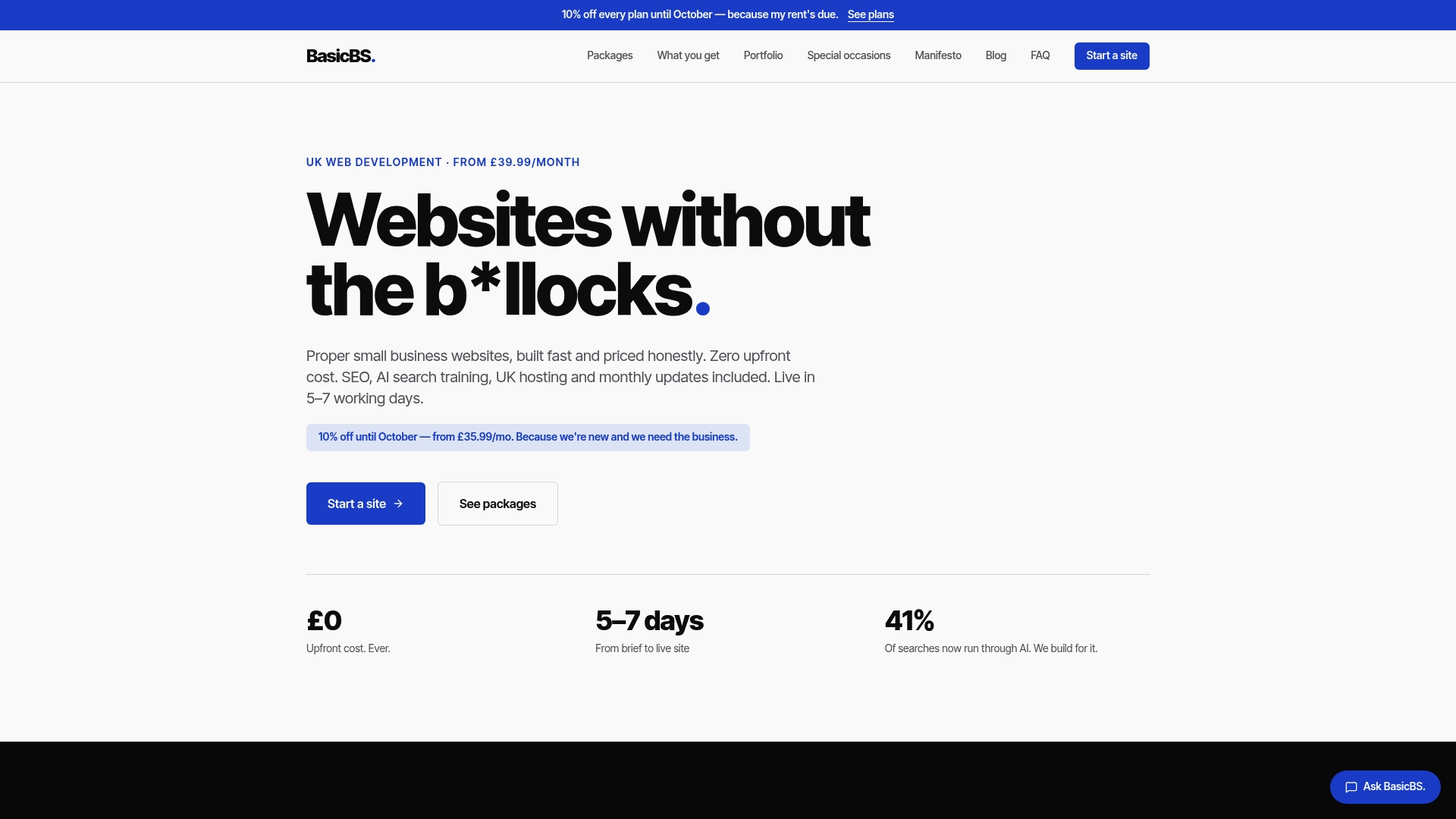
Our web design pricing setup is transparent, with no hidden charges and a cancel-anytime rolling plan after the initial agreement period. Whether you’re a sole trader after a simple website, a plumber wanting a proper quote page, or an electrician tired of Checkatrade fees, we build it properly the first time.
- Instagram embeds set up to load only after consent, gated correctly under UK guidance.
- Fast, mobile-friendly builds with managed hosting and SSL included.
- AI search training so your business shows up when people search on ChatGPT and Google’s AI overviews, not just classic search.
Our Website Sale! plan starts from £10 a month. Have a look at our services or head to the homepage to get your build started.
Sources
- How do we manage consent in practice? | ICO
- Third-Party Plug-In Embeds: Essential Compliance with GDPR & UK Data Bill 2025
- Embed an Instagram post or profile
- Embed an Instagram Post - Meta for Developers
- Three notable changes to the UK ICO’s guidance on cookies
FAQ
How do I embed an Instagram URL on my site?
Copy the post’s link, open it on Instagram, click the three dots and choose “Embed” to get the ready-made code. Paste that code into a Custom HTML block on your platform and the post will display with its original caption and media.
How do I embed Instagram using HTML code?
Instagram generates the HTML for you when you select “Embed” on a public post or profile, so there’s no code to write from scratch. You simply paste that snippet into an HTML block in WordPress, Wix or Shopify and it renders automatically.
What does “embed” mean on Instagram?
Embedding means displaying a post, reel or profile from Instagram directly on another website, rather than just linking out to it. The content stays hosted on Instagram, but visitors see it inline on your page without leaving.
How do I get an Instagram link to add to my website?
Open the post on Instagram, tap the three dots, and choose either “Copy Link” for a plain URL or “Embed” if you want the full post to display on the page. The embed option is the one that actually shows the content rather than just linking to it.
Do Instagram embeds affect my page’s SEO or speed?
Multiple raw embeds can slow your page’s loading time, which search engines do take into account. Using a lazy-load or click-to-load pattern keeps the page quick while still letting visitors see the content when they want it.